Tutorial: Splitting and Tagging Audio Files
This tutorial explains how you can split a recording into several files. Often, you may need to save individual fragments of recorded audio into separate files. For example, you record an Internet transmission and want each song written to a different file. Or you may want to break a recorded file into several fragments of a fixed size or duration. Or you may want to split a recorded file into separate tracks based on a cue-sheet file (if available). For these functions, you can use the Split mode feature in the Professional, VideoPro and Developer Editions of Total Recorder.
The majority of players display information about the clip being played in the title of their window. Total Recorder is aware of the formats of window titles for most of the popular players. For such players, Total Recorder can extract information about the clip being played and use it for file tags (such as Ogg Vorbis tag or ID3 tag of MP3 file) and when generating file names for files that are created when recording in split mode (i.e. tagging audio).
The name of a playing clip can be extracted from the title of a player. Many, but not all, players allow you to extract information regarding the performer of a clip if such information is present in the file being played. Only Windows Media Player 9.x (or later) with a special plug-in (see below) lets you obtain values for all ID3 tag fields (ID3v1 and ID3v2) if such tags are present in the file being played.
There are several ways to use the Split mode feature depending on your requirements:
Splitting and Tagging of Audio While recording
Splitting an Existing File
Splitting and Tagging of Audio While recording
If you want Total Recorder to automatically break the audio being recording into different files based on some predefined conditions (such as the size or duration of the recording, period of silence between songs, etc.), you can use the Split recording conditions dialog to specify a set of conditions under which a file should be automatically split.
To specify split recording conditions, take the following steps:
-
Open the
Options->
Settings
menu, and select the
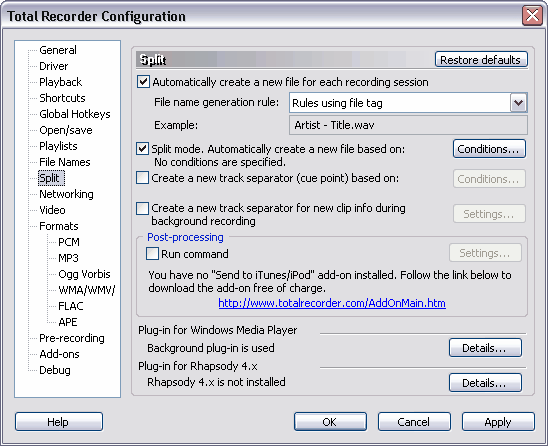
Split tab. Select
Automatically
create a new file for each recording session:
-
From the drop-down list, select the file name
generation rule template that you want to use in split mode. An
example of a file name generated by this rule will appear in the
Example field:
-
-
Check
Split mode. Press the
Conditions button
to open the
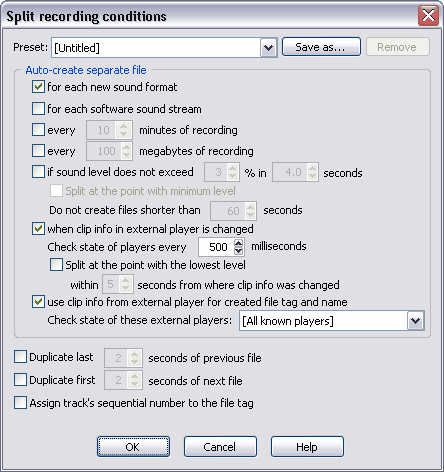
Split recording conditions dialog:
-
Select the required options on the Split
recording conditions dialog. For example, if you wish
to record each song from an Internet broadcast into an individual
file, it is recommended that you use the option for each
software sound stream. This split condition is reliable
and precise, but it can only be used when your player does not
play multiple streams as one. Another option to separate songs
is to use the if sound level does not exceed mmm% in xx.x
seconds option. Since pauses do not always contain "pure"
silence and are often filled with quiet noise, it is very important
to correctly select the mmm% value that triggers
Split mode.
-
Press OK.
-
-
Start recording. Total Recorder will generate
a file name based on the template you indicated, and start saving
the audio being recorded into this file. The file name will appear
in the title on Total Recorder’s main window.
-
As soon as one of the specified split conditions
occurs, Total Recorder splits the recording, saves the previous
file, and starts recording to the next file.
- Starting split recording with tagging
To split and tag the audio being recorded based on the clip info in the external player, take the following steps:
- Select the Options-> Settings menu and select the Split tab.
-
Select
Automatically create a new file for each recording session. Choose an appropriate rule for generating file names based on tag fields. To create a new rule, or to edit an existing rule, use the
File Names dialog (see
File
Name Generation Tutorial):
-
Check Split mode.
-
Press the
Conditions button. The
Split recording conditions dialog appears:
-
Make sure that each of the following check boxes are checked:
- for each new sound format
- when clip info in external player is changed
- use clip info from external player for created file tag and name
-
Select a player from the Check state of these external players list.
Please note that setting a lower value in the Check state of players every XXX milliseconds box results in more precise splitting but a greater load on your processor.
It is also recommended you select a particular player in the Check state of these external players list. Selecting [All known players] results in additional processor load and incorrect behavior when more than one player is running.
-
Press OK.
- If you plan to record and tag a file, you also need to go to Options-> Settings-> Format tab.Specify that you need to Create tag as specified and press the Tag... button. The Tag dialog box appears:
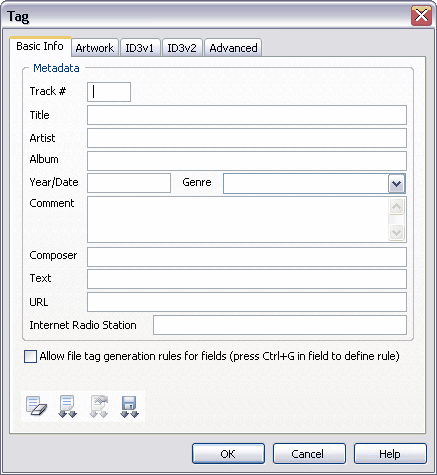
Keep all fields empty or fill in some fields you want to use permanently. Press OK twice.
-
Start recording. Total Recorder will capture the available clip info from the external player and use it for generating a file name based on the template you indicated and for filling in the tag fields. The file name will appear in the title on Total Recorder's main window.
-
As soon as clip info in the window's title of the external player changes, Total Recorder splits the recording, saves the previous file, and starts recording to the next file.
- Using the Split Now feature
The “Split Now” feature allows you to manually break a file during the recording process. To use this feature, take the following steps:
-
Open the Options-> Settings menu and select the Split tab. Select Split mode.
-
Select
Automatically create a new file for each recording session. Choose an appropriate rule for generating file names based on tag fields. To create a new rule, or to edit an existing rule, use the
File Names dialog (see
File
Name Generation Tutorial):
-
Check Split mode. Press OK.
-
-
Start recording. Total Recorder will generate a file name based on the template you specified, and start saving the audio being recorded into this file. The file name will appear in the title of Total Recorder’s main window.
-
When you want to stop recording to this file
and start saving audio to the next file, press the
Split
Now 
button on Total Recorder's Split toolbar.
Splitting an Existing File
You can split a file that has already been recorded into different fragments using the Split recording Conditions dialog.
Take the following steps:
-
Open the file that you want to split.
-
Use the
Split recording conditions dialog to set your split conditions for splitting files. For saving files, the following split conditions are used: size, duration, and low level of sound.
-
Press OK.
-
Choose an appropriate rule for generating file names based on tag fields. To create a new rule, or to edit an existing rule, use the
File Names dialog (see
File Name Generation Tutorial). Press
OK.
- Use the File->Save special-> Save based on split conditions menu item.
- The open file will be split and named according to previously set parameters.
The Sound Image provides a visual representation of the characteristics of sound data. You can split the existing file using the Sound Image feature and Manual Split group:

You can launch the Sound Image from the View menu. It can be represented as either a panel in Total Recorder’s main window (View-> Show Sound Image in Panel) or as a separate window (View-> Show Sound Image in Separate Window). Associated with the Sound Image feature is a Manual Split group that contains buttons that let you manually split already existing files:

To split the file using the Manual Split group:
- Open the file that you want to split.
-
Use the
Split recording conditions dialog to set your split conditions for splitting files. With
Manual Split, you can use only the following split conditions: size, duration, or a low level of sound. Note that searching for the next split point based on size is approximate. Press
OK.
-
Open the
Sound Image panel if it is not already active (
View->
Show Sound Image in Panel):
- Use the Manual Split buttons to split and save individual fragments of the open file based on the specified split conditions. When you press the Find next split point button
 , Total Recorder searches from the current position to try to find a position in the sound data that satisfies one of the split conditions that you selected. When you press the Delete before current position button
  , sound data that is before the current position is deleted. Deleting can be undone and redone. When you press the Save and delete before current position button
  , sound data which is before the current position is saved to a file and then deleted. Deleting can be undone and redone.
- The file name will be generated according to the settings on the Open/Save dialog. If you want to use the standard Save As dialog for choosing a file name, select menu File-> Save As... menu item.
Split a recording based on cue points
In Total Recorder, some of the operations with regards to cue points and split operations are similar. When recording with cue points, the result is one recording file and one associated cue file. A cue file is a standard file that contains information about the tracks in a media file. You
can use Total Recorer as a cue splitter,
for example, to work with cue-sheet files and use cue points as bookmarks or track separators for splitting a file into tracks afterwards. Cue points can be created either automatically (during a recording session) or manually. To split a media file into separate files based on a cue file:
Open the file that you want to split.
-
In the Cue-sheet editor window, select "Track"-"Save tracks to separate files....", or click the button on the Cue-sheet editor toolbar.
- Complete the fields on the Save tracks to separate files dialog. For example, if you want the source file's folder to be used as the destination folder, it is recommended that you use the option Use source file's folder as destination folder.
Another option to store files is the Use this folder as destination folder option which means the folder you specify will be used as the destination folder.
To change the folder, click the
 button.
- Select an appropriate rule from the drop-down list at the right. To create a new rule, or to edit an existing rule, use the File Names dialog (see File Name Generation Tutorial). When constructing a file name, the name is generated according to the specified rule, and then interpreted with respect to the destination folder.
- You can choose to change the audio format when splitting a file. If you want to change the format, select the Convert audio format to check box, and click the "Change..." button to specify the format.
Notes:
- When dividing a recording into separate parts, you can choose to use split mode or to create cue points. You cannot use both at the same time.
- When using the VideoPro or Developer Edition, each part of the video file must start from a key frame. Since every split point is moved to the next nearest key frame following the point where the split condition is satisfied, split conditions may not give the
exact results you expect.