|
|
|
We would like to try
our best to provide you with the best products and service.
If you encounter a problem that is not listed in either
the Total Recorder Help (Troubleshooting section) or in
this FAQ, e-mail us at
support@highcriteria.com.
If you have any suggestions
regarding our programs, please do not hesitate to contact
us.
|
|
QUESTIONS
|
|
|
Contacting
Technical Support |
|
|
|
|
|
Purchasing
and Registration |
|
|
|
|
|
|
|
|
|
|
|
|
|
Installation |
|
|
|
|
|
|
|
|
|
|
|
|
|
|
|
Using
Total Recorder |
|
Recording |
|
|
|
|
|
|
|
|
|
|
|
|
|
|
|
|
|
|
|
|
|
|
|
My
computer suddenly shut down (locked up, restarted) while I was
recording with Total Recorder. How can I restore the recorded
audio from Total Recorder's temporary files? |
|
|
|
Video
Recording |
|
|
|
|
|
|
|
|
|
|
|
Split
mode |
|
|
|
|
|
|
|
|
|
Add-Ons |
|
|
|
|
|
|
|
|
|
Troubleshooting
and compatibility issues |
|
|
|
|
|
|
|
|
|
|
|
|
|
|
|
|
| |
|
| |
|
|
|
|
|
Skype |
|
|
|
Other
Questions |
|
|
|
Futures |
|
|
|
|
|
ANSWERS
|
|
|
|
Contacting
Technical Support |
|
Contacting
Technical Support |
|
If you encounter a problem that is not
listed in either the Total Recorder Help (Troubleshooting
section) or in this FAQ, e-mail us at support@highcriteria.com.
Please provide the following information:
-
Whether you are
a registered user or you are evaluating the program
-
The program version
and edition you are using
-
The version of Windows
that you are using
-
A detailed description
of the problem
-
If the problem relates
to recording, specify what kind of audio you are trying
to record: sound from a microphone, a tape recorder,
sound reproduced by a player (identify the name and
the version of this player), Internet transmission (specify
the URL), or similar
- Any other details you feel are relevant.
If the problem appears through
an error message displayed in Total Recorder or its install
program:
-
Press the Debug
info>> button in the message box.
-
Press the Copy
button in the message box. Debug information will be copied
to the Clipboard.
-
Insert the information
from the Clipboard into your letter to the Technical Support
Team (press Ctrl-V).
Note: If the message is not produced
by Total Recorder then provide us with the exact text and the
name of the program that issued the message.
Due to insufficient information,
our support staff will ignore E-mails if they contain single
line entries like those below:
"Problems obtaining
a registration key"
"Total Recorder does not work"
"Total Recorder does not record"
"How do I use Total Recorder?"
Please note that although
our support staff may provide some hints on how to use the
software in an efficient way, they will not provide any step-by-step
instructions for common tasks. Please refer to the online
help for this type of information.
We provide free-of-charge
support even for evaluation copies of Total Recorder.
|
|
|
|
Feature
Request and Suggestions |
|
If you have an enhancement
request for Total Recorder, please contact technical support
at support@highcriteria.com
and provide the following information:
We give consideration to
all user's suggestions, some Total Recorder's features were
implemented thanks to addresses of our users.
|
|
|
|
Purchasing
and Registration |
|
What
is the difference between a registered version and an unregistered
version of Total Recorder? |
|
If the program is unregistered:
-
A short portion of
noise is inserted into recorded sound about every one
minute.
-
You cannot process
more than three files during batch processing (Professional,
VideoPro, and Developer Editions).
-
When recording video,
a mark is added to captured images (VideoPro and Developer
Editions).
|
|
How many computers can I install Total Recorder on if it's licensed? |
|
For personal-use applications, one registered copy of Total Recorder can be used by a single person who uses the software on up to three computers.
For commercial, educational or other non-personal-use applications, one registered copy of Total Recorder must be installed on a single computer, used non-concurrently by multiple people.
|
|
|
|
Is
my registration good for all future versions of Total Recorder? |
|
Yes, your registration is good for all future versions of
the same edition. All versions prior to V3.3 (when different
editions were introduced) are considered the Standard Edition.
Occasionally, the format of the registration
key changes with a major release of Total Recorder or one
of its add-ons. In such cases, all registered users are entitled
to a free updated registration key for the same edition (add-on).
To obtain a key, you can use our self-service
registration key management system.
Registration keys were last changed in the
following versions of Total Recorder:
- Standard Edition - Version 6.0
- Professional Edition - Version 6.0
- Developer Edition - Version 6.0
- VideoPro Edition - never changed
Registration keys were last changed in the
following versions of Total Recorder's Add-ons:
- Audio Restoration Add-On - Version 1.1 (re-released with
Total Recorder Version 7.0)
- Automatic Gain Control and Speech Enhancement Add-On -
Version 1.1 (re-released with Total Recorder Version 7.0)
The Video Add-on is no longer available beginning with Total
Recorder 8.0. However, a new Total Recorder Edition called Total
Recorder VideoPro Edition has been introduced that has all of
the features of Total Recorder Professional Edition with the
Video Add-on. All registered users of Total Recorder's Video
Add-on can upgrade to Total Recorder VideoPro Edition at no
charge. Registration information for the Video Add-on is valid
for the Total Recorder VideoPro Edition. |
|
|
|
How
long does it take to get a registration key? |
|
If you register by credit card, it takes
only minutes. Your registration code is automatically E-mailed
to you as soon as your credit card has been verified.
If you or your ISP is using E-mail filtering
software, we cannot guarantee that our E-mail will not be
considered spam. To alleviate this problem you can temporarily
add websale@highcriteria.com
to your trusted list of addresses. If you have not received
your key within 15 minutes of your purchase, it is a good
idea to check the folder that collects your junk mail.
|
|
|
|
My
credit card transaction was approved but I didn't get a receipt
and/or a registration key. What should I do? |
|
This is likely caused by a typing error in
your E-mail address or possibly due to some technical problems
with network communications. E-mail support@highcriteria.com
and we will resend the missing information to you. Make sure
that your E-mail address is not blocked and can accept E-mail
from us.
If you or your ISP is using E-mail filtering
software, we cannot guarantee that our E-mail will not be
considered spam. To alleviate this problem you can temporarily
add websale@highcriteria.com
to your trusted list of addresses. If you have not received
your key within 15 minutes of your purchase, it is a good
idea to check the folder that collects your junk mail.
|
|
|
|
My credit card is valid and has sufficient
credit but your Website keeps declining it. What can I do?
|
|
The best way to resolve this is to call your
bank. They have records of all your transactions and may be
able to quickly determine the reason for failure. You can
also try an alternative credit card link.
Note that InternetSecure allows only two
purchases with any specific credit card during a given 24-hour
period. Please purchase a bundle or use a different credit
card if you want to make more than two purchases.
|
|
|
|
Installation |
|
I
have a previous version of Total Recorder installed. Will the
newer version override it? |
|
Yes. A newer version will automatically remove
an older version, install itself, and then ask you to reboot
your computer so that a driver in memory can be changed. If
you install a newer version over an already existing install,
all your settings (including scheduled jobs) are preserved.
However, when you install a new version of
Total Recorder over some of old versions (version 5.3 and
earlier), it will be unregistered. You must enter your new
registration key to register your new version. See the question
above Is my registration good for all future
versions of Total Recorder?
If you need a new registration key for an
updated version, you can use the following link:
https://hcserv8.libertyrecording.com/scripts/getkey/restorekey.asp.
A new key will be E-mailed to the address that you used for
registration.
Please note that two different editions of
Total Recorder cannot co-exist on the same PC. If you install
one edition of the program over another edition of the same
version or an older version, Total Recorder will also be unregistered.
|
|
|
|
When
I try to run the Setup.exe program, I get a message "...
is not a valid win32 application" or "WinZip self-extractor
header corrupt". What should I do? |
|
The most likely cause of this error is that
the download was not complete even though your web browser
thinks it did complete.
Downloading again may not help because the
incomplete file is in the browser's cache. You should first
clear the cache and then download again. Or,
you can download the program from Alternative link
which is available for any product on our
download page. If clearing the cache and re-downloading
does not resolve this problem then it is likely caused by
a virus on your computer.
|
|
|
|
My
hard disk crashed and I lost everything including Total Recorder.
How can I restore it? |
|
You can always download the latest evaluation
version from our web site. We recommend you write down your
registration key and keep it in a safe place.
If you have lost your key, use
https://hcserv8.libertyrecording.com/scripts/getkey/restorekey.asp
to obtain a registration key.
This form can be used only if your E-mail
address that we have in our database is still valid. If this
is not the case, E-mail support@highcriteria.com
and provide your registration name, the old address, and the
new address, and we will update our records.
|
|
|
|
Total
Recorder's Drivers |
|
Why
does Total Recorder need a driver? |
|
Total Recorder's driver provides you with
the advantages of recording in software mode.
See What is the difference
between the recording source settings "Software"
and "Sound Board"?
Recording in Software mode
without Total Recorder's driver is not possible. To record
in Soundboard mode, there is no requirement
for the Total Recorder driver.
|
|
|
|
Total
Recorder is supplied with various drivers. How do I decide which
one to use? |
|
Total Recorder has three types of audio drivers:
- User-mode virtual device
driver. This is the same type of driver that has been supplied
since the first version of Total Recorder;
- Kernel-mode virtual device driver, which
was added in version 7.0;
- Kernel-mode filter driver, which was added
in version 8.0.
For information about the drivers,
refer to the How to choose the most
suitable driver tutorial.
Note. By default Total Recorder
is installed with its kernel-mode filter driver. And it is
not recommended to change these settings without a strong
necessity.
|
|
|
|
How
can I install/uninstall a Total Recorder driver? |
|
To install or uninstall a driver, you must re-install Total
Recorder over the installed instance and select the appropriate
driver options during installation.
To open the dialog that allows you to select
the drivers to be installed, you need to click Advanced button
when the installation program prompts you for the installation
folder. You must reboot your system after re-installation
completes.
Total Recorder's settings and registration
information are all preserved.
|
|
|
|
|
|
Using
Total Recorder |
|
Recording |
|
Is
there any time limit in the registered version of Total Recorder? |
|
There is no limit imposed by Total Recorder
but a limit can be imposed by the format of the target file.
For example, you cannot make a recording to a RIFF WAV or
VBR MP3 file greater than 4GB. If you want to make a very
long recording, you can try one of the following:
- Use another file format.
- Use the same file format but with less quality.
- Record in split mode (Professional and VideoPro Editions).
|
|
|
|
What
is the difference between the recording source settings "Software"
and "Sound Board"? |
|
Total Recorder can perform recording in two main modes: Software
and Sound board.
Software mode allows you to record the following:
- Sound reproduced by another program, including streaming
audio.
- Sound reproduced and captured by other programs simultaneously,
including Internet telephony programs.
Sound board mode allows you to record the following:
- Sound from a microphone.
- Sound from a line-in. This should be used to record from
an LP player, cassette player, or another external device.
- Sound reproduced by another program, including streaming
audio, if the sound board has a special loop-back line.
Most sound boards have such a line.
- Sound from any other input line of your sound board.
An external program can be recorded in either Software
mode or Sound board mode. The advantages
of recording in Software mode are:
- There is no need for your sound board to have a special
loop-back line.
- While recording an external program in sound board mode,
your sound board performs redundant conversions from digital
to analog and from analog to digital. This results in a
loss of sound quality. While recording an external program
in software mode, such conversions do not occur.
- While recording in software mode, the recording starts
only when sound is present. This eliminates the need to
start recording and playback at the same time.
- Accelerated recording mode can be used.
Recording (digital) sound from Software
and (analog) sound from Sound Board are two
very different things.
Here is a picture that shows the path
of the sound when the recording source is set to Software:
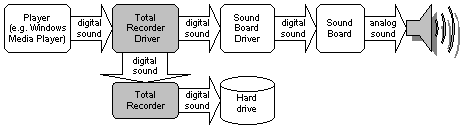
Here is a picture that shows the path
of the sound when the recording source is set to Soundboard:
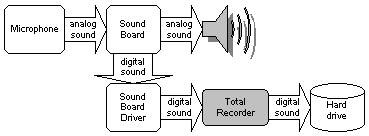
|
|
|
|
How
can I record streaming audio with Total Recorder? |
|
There are three ways of recording audio from
Internet with Total Recorder: Software, Soundboard
(from a line like StereoMix) and Background
recording. The latter is available in Professional
and VideoPro Editions only.
The Background recording is a preferred
method but not all transmissions are supported for being recorded
in this way. For more information and instructions see our
tutorial on background recording.
If the transmission doesn't appear to be
supported for background recording, then you can reproduce
it on your computer and record it in Software recording
mode. The instructions are provided in our
web tutorial.
Soundboard recording mode should be
applied for recording streaming audio only in rare cases when
the other two methods are impossible.
|
|
|
|
How
can I record audio Skype conversations with Total Recorder? |
|
See our
web tutorial on recording Internet-telephony conversations.
|
|
|
|
The
"Accelerated recording (silent mode)" option under the "Advanced
parameters for Software recording" dialog is disabled. Why? |
|
Recording in Software Accelerated
Recording mode is only possible if you use either
Total Recorder user-mode or kernel-mode virtual device
driver. When you use the kernel-mode filter driver,
recording in accelerated mode is impossible and Accelerated
recording (silent mode) option is not available.
This mode can be useful
when you need to convert a sound file from a format that Total
Recorder does not support to one that it does support. This
is normally done at a fraction of the time required to play
the file.
Here is a picture that
shows the path of the sound when Accelerated recording mode
is selected:

Click
here for information on different types of drivers supplied
with Total Recorder.
|
|
|
|
CD
and DVD are digital media. Can I record CD/DVD audio in Software
mode? |
|
Yes, this can be done with an appropriate
player. For example, Windows Media Player uses digital audio
extraction to play CDs and the sound can be recorded in Software
mode.
|
|
|
|
Why
would I need to capture digital sound? Can't I record any sound
from my computer simply by connecting the output line of the
sound board to the input line of the same sound board or of
a different one? |
|
Yes, you can. However, digital recording
is usually of a higher quality because it avoids the conversion
(digital to analog to digital) performed by sound boards.
The real quality of both digital and analog recordings may
vary significantly depending on such factors as CPU power,
the soundboard, the playback program, and many others.
|
|
|
|
When
I try to put a wave file I recorded to an audio CD, my CD-burning
software displays an error message. Why? |
|
Usually, you need to use CD-quality wav
files.
To record in this format: in the Media format
dialog, select CD Quality from the Preset
drop-down list. The recording format will be set
to PCM 44.1 KHz 16bit Stereo.
If you are using software mode, you must
also select Convert audio format to the one specified
below.
To convert an existing file: open it in Total
Recorder and use Save As. Then use Change
and select CD Quality from the Preset
drop-down list. The recording format will be set to PCM 44.1KHz
16bit Stereo.
|
|
|
|
When
I try to record streaming audio, my recording can be heard from
only the right speaker even though the original sound is in
stereo. Why? |
|
This is the expected behavior if both of
the check boxes Record also input streams
and Put each speaker in a separate channel
are checked. In this case, each speaker voice (when recording
Internet telephony) will go to a separate channel. When recording
anything other than Internet telephony and both boxes are
checked, it will lead to this situation.
You should not check both of these boxes unless you plan to
record Internet telephony.
|
|
|
|
Can
I record midi files as wave files with Total Recorder? |
|
Yes, in most cases you can.
There are several ways to play a midi file:
- Some sound cards are capable of midi synthesis through
special on-board hardware. And a MIDI-player can play a
midi through the sound card capabilities.
- A MIDI-player can play MIDI using software synthesis.
The synthesis can be provided by the player themself (probably
by a player's plug-in), or by special driver (e.g. Yamaha
SXG).
If hardware MIDI synthesis is used, you should
record the MIDI in Sound board mode from a loop-back line
(like "Stereo Mix", "Wave", etc.).
If software MIDI synthesis is used, you can
apply the both: recording in Sound board
mode from a loop-back line, and recording in Software
mode. In most systems, you can record midi either way.
|
|
While
recording I hear an occasional beep. Why does this beeping occur
and how can I turn it off? |
|
Total Recorder itself does not produce any
such sounds. These beeps are issued by some external software.
You should try to identify this software and turn off sound
notifications.
For example, Microsoft Outlook can be the
source of such beeps. You can turn off sounds in one of the
following ways (depending on your version of Microsoft Outlook):
- Go to Tools - Options, Preferences
tab. Click the E-mail options... button, click the
Advanced E-mail options... button, clear the Play
a sound option.
- Go to File - Options, Mail tab. In
the Message arrival group, clear the Play a sound
option.
|
|
|
|
My
computer suddenly shut down (locked up, restarted) while I was
recording with Total Recorder. How can I restore the recorded
audio from Total Recorder's temporary files? |
|
Go to Options => Settings
=> Open / Save. Look in the folder assigned
to store temporary files. If a temporary file in this folder
has a .wav or .mp3 extension, it usually means that it is
a proper audio file.
If a temporary file has a ".tmp"
extension, it means that you cannot securely extract all recorded
audio information from it. This happens because some information
is stored in this file and some information is stored in the
PC's RAM during the recording process.
However, you can usually recover most of
your data which is stored in a .tmp file in PCM format. This
file doesn't have a proper header so you can use our free
application called TRTmpRecovery
(~65 Kb) to add a header. This program allows you to playback
any file as a PCM file using different parameters (sample
rate, 8/16 bit, mono/stereo), select the most appropriate
parameters (if the file actually contains audio data), and
add a proper header to this file. Once a header is added,
this temporary file becomes a valid .wav file.
|
|
|
|
Some web sites to be
recorded require entering username or password, or display
another dialog messages that require user interactions. These
prevent or mix Total Recorder's scheduler to record from such
sites. What can I do?
|
|
High Criteria provides a free command line
utility ScrptExec for such cases.
The utility is able to execute scripts in own script language.
One can create an appropriate script (e.g. script that automatically
fills username and password or answers dialog prompts) and
include running the utility with a script in a scheduled job.
A number of sample scripts are included in the ScrptExec
package.
|
|
|
|
Video
Recording |
|
Can
I record video using Total Recorder? |
|
Yes. To record video you need Total
Recorder VideoPro Edition installed. For more information,
refer to the Getting familiar
with video in Total Recorder tutorial.
|
|
|
|
How
can I record streaming video with Total Recorder? |
|
There are two ways of recording video from
Internet with Total Recorder VideoPro Edition: background
recording and capturing video from the screen.
The first method is preferred one but not
all transmissions are supported for being recorded in this
way. For more information and instructions see our
tutorial on background video recording.
If the transmission is not supported for
background recording, then you can reproduce it on your computer
and capture from the screen. The instructions are provided
in our web tutorial.
|
|
|
|
How
can I record video Skype conversations with Total Recorder ? |
|
To record video Skype conversations with
Total Recorder VideoPro Edition:
1) Set Total Recorder audio recording parameters
as described in our
web tutorial on recording Internet-telephony conversations.
2) Set Total Recorder video recording parameters
as described in our
web tutorial on recording video from the Screen.
|
|
|
|
I
record video from the screen, however I get only a black rectangle
recorded. What should I do to resolve the problem? |
|
You need to temporarily turn off hardware
acceleration, as described below.
- Close the video playback program to be recorded.
- From Total Recorder's main menu, select Tools
-> Turn video acceleration off.
- Launch a video playback program and start playing video.
Now video being played should be recorded normally.
|
|
Total
Recorder hangs when I record video using encoding with the Xvid
codec. How can this issue be fixed? |
|
This is caused by Xvid's status windows.
To fix the issue, turn off displaying the windows
in one of the following ways:
- In the Programs menu, find and launch Xvid
- Configure Encoder. The Xvid Configuration
dialog will be displayed. On the Encoder tab, click
the Other Options... button and clear the Display
encoding status option.
- In Total Recorder's Media format dialog, click
the Configure button. The Xvid Configuration
dialog will be displayed. On the Encoder tab, click
the Other Options... button and clear the Display
encoding status option.
|
|
|
|
Split
Mode |
|
There
are different split conditions. How do I decide which one to
use? |
|
First you should decide whether you care
about natural content boundaries. For example, if you are
recording a 1-hour morning news program to listen to later
in your car, it is a good idea to split it into smaller pieces
(e.g. 5 minutes each). However, you probably don't care about
the boundaries. If you were recording a concert, you would
probably want to split the recording based on song boundaries
and avoid splitting songs in the middle.
In the first case, you can choose a split
condition of either every xxx minutes of recording
or every xxx megabytes of recording. These
two methods are similar and you can use either one.
In the second case, you should choose a split
condition of for each software sound stream,
when clip info in external player is changed,
or if sound level does not exceed xxx % in yyy seconds.
The option for each software sound
stream is more precise and more reliable, but it
can only be used when all of the following conditions are
met:
- you are recording in Software mode
- you are recording a playlist or the broadcast consists
of multiple streams
- your player does not play multiple streams as one.
Where possible, you should always use for
each software sound stream instead of when
clip info in external player is changed or if
sound level does not exceed xxx % in yyy seconds.
You can use when clip info in external
player is changed only if Total Recorder can extract
clip info from your player (i.e. the player appears in the
Check state of these external players list).
Using if sound level does not exceed
xxx % in yyy seconds is required when you have pauses
longer than 0.1 second. Some broadcasts do not have such pauses
and cannot be split using this method. Also, a pause in the
middle of a song can sometimes trigger a false split. Because
such pauses are usually at the beginning of a song, you can
sometimes prevent false triggering by setting Do not
create files shorter than xxx seconds.
For more information, see the Splitting
and Tagging Files tutorial.
|
|
|
|
Can I break a concert
recording into segments, each of which is approximately 20
minutes long, but still preserve the song boundaries?
|
|
Yes, you can. Split your recording using
the if sound level does not exceed condition,
check the box Do not create files shorter,
and specify 1140 seconds (1140 = 19 * 60).
|
|
|
|
I'd like to record
multiple songs from different sites in an unattended manner.
Since I don't know how long each song will be, it is not appropriate
to use the scheduler.
|
|
This task does not require that you use the
scheduler. Take the following steps to perform such recording:
- Create a playlist of all the songs you want to record
in a program that allow to use URLs as playlist items (e.g.
in WinAmp, Windows Media Player etc.). Note that Total Recorder
does not allow to create such playlists.
- Use split mode with an appropriate Split conditions to
separate songs while recording. The playlist should be played
backed by a program that is capable to play Internet transmissions
(for example WinAmp, Windows Media Player etc.). See also
Splitting and Tagging
Files tutorial.
|
|
|
|
I am using split mode
and try to set the condition "when clip info in external
player is changed" and/or "use clip info from external
player..." but it is not working. Why?
|
|
Check if your player is included in the Check
state of these external players drop-down list of
the Split recording conditions dialog. If
your player is not listed, Total Recorder does not support
the extraction of clip info from it. Either Total Recorder
cannot extract such information from this player, or this
player is not ranked among the most popular and therefore
we haven't included support for it in Total Recorder.
Total Recorder can only retrieve clip information
from a player if this information is displayed in the window
title of the player (not just in the player's window). The
only exception is Windows Media Player, which is included
with Windows, and is present on almost all computers. We have
developed a special approach for this program.
The following is a list of known players
for which the extraction of clip info through Total Recorder
is not supported:
- iTunes;
- Rhapsody version prior to 4.0 (standalone application).
Notes.
-
For Rhapsody versions prior to 4.0,
clip info can be extracted from Rhapsody ActiveX imbedded
into a browser window. Unfortunately, a universal capturing
template cannot be provided since the situation depends
on your browser. If you use a browser other than Internet
Explorer or Mozilla Firefox, you can try to create the
template yourself using our free application named TRExtPlrWizard
( see below).
- For Rhapsody version 4.x, clip info can be extracted using
the special "Total Recorder Now Playing Plug-in for Rhapsody
4.x".
To extract clip info from Rhapsody 4.x in Total Recorder
7.1 and earlier:
To extract clip info from Rhapsody 4.x in Total Recorder
8.0 and above:
-
In the Options
- Settings - Split
dialog, click the Details button
in the Plug-in for Rhapsody 4.x
group. Click the Install button
in the Total Recorder plug-in for Rhapsody
4.x dialog if the plug-in is not installed.
-
In the Split recording
conditions dialog, from the Check
state of these external players list, select
Rhapsody 4.x.
If your player displays clip information
in the title of its window, but it is not included in the
list of supported players, please forward this information
to support@highcriteria.com.
Specify the exact name and version of this player, and also
the URL from which it can be downloaded (if appropriate).
Alternatively, you can
independently enable Total Recorder to extract clip info from
your player. For this, you need to download our free application
called TRExtPlrWizard
(~450Kb).
This program allows you to visually edit
a Total Recorder template file for analyzing the player's
window titles. It captures titles from the player's window
so you only need to indicate which fragments are permanent
and which contain actual clip information (title, artist,
and so on).
|
|
|
|
Add-ons |
|
I
want to digitize my collection of records. Can the noise be
removed that occurs when an old record is being reproduced? |
|
To remove distortions such as clicks, crackles,
and background noise, and accomplish high-quality restoration
of audio recorded from LPs (and also tapes and microphones),
you can use the Audio Restoration Add-On
for Total Recorder. |
|
|
|
Recordings
that I made from a tape recorder contain loud background noise.
Can I get rid of this noise? |
|
Yes,
this is possible with the Audio Restoration
Add-On for Total Recorder. |
|
|
|
I want to digitize
my recordings made from an analog dictaphone. The voice levels
in the recorded conversations vary throughout. How can I minimize
this?
|
|
To control the sound level of speech recording
during playback and recording, you can use the AGC
and Speech Enhancement Add-On for Total Recorder.
|
|
|
|
Can
I use an equalizer with Total Recorder? |
|
Yes, you can use our free Spectrum
Analyzer and Graphic Equalizer Add-on. This add-on contains
two independent modules: the Spectrum Analyzer and the Graphic
Equalizer.
|
|
|
|
Troubleshooting
and compatibility issues |
|
Is
Total Recorder compatible with Windows 11? |
|
Total Recorder 8.6 is compatible with Windows 11, but when
installing Total Recorder onto a Windows 11 computer you
should take into account the following information:
-
By default, Total Recorder is installed with its kernel-mode
filter driver. This driver is the most stable driver
now, but in rare cases under Windows 11 it may cause
the "Blue Screen of Death" (BSOD) and/or system rebooting.
So, if after installing the program you started encounting
this problem, just reinstall Total Recorder only with
its kernel-mode virtual device driver.
-
If you performed a default installation of Total Recorder
with its kernel-mode filter driver and found out that
recording in Software mode doesn't work, reinstall Total
Recorder with its kernel-mode virtual device driver.
Click here for information
on how to install/uninstall a Total Recorder driver.
-
Total Recorder doesn't allow to record video+audio
in MP4 format under Windows 11 due to inability of using
AAC format. Recording of pure video is available. The
solution is to use other recording container, e.g. WMV
or AVI (xvid+mp3).
If you encounter a problem that is not listed in this FAQ section or need further help, please contact our support as instructed here.
|
|
|
|
Is
Total Recorder compatible with Windows 10? |
|
Total Recorder 8.6 is compatible
with Windows 10. Still you can encounter some problems.
Problem 1. Capture
of URLs for Background recording (menu File => Open
URL, Capture transmission) doesn't work: Captured
transmissions field in Capture transmission window
always remains empty. This is related to the changes made
to the system browser.
Usually it is easy to obtain the
required link manually as follows: right click a player
window and choose Copy Location (or similar item)
from the contextual menu.
If this method doesn't work, then
we would recommend you use specialized software (network
sniffers). One of such programs is URL Snooper:
https://www.donationcoder.com/Software/Mouser/urlsnooper/
Disclaimer. High Criteria
has no relation to this program and cannot be responsible
for its work.
Problem 2. There was an error in Windows
10 resulting in problems when working with AVI files: system
functions often return error code 0x8004020D. This is a
known problem discussed at Microsoft website (Windows
10 DirectShow problem).
On January 27, 2016 this problem was solved by Microsoft
in the Cumulative Update for Windows 10 Version 1511 KB3124262.
|
|
|
|
Total
Recorder seems to be recording normally, but on playback the
audio is scrambled, garbled, or playback speed varies. |
|
This problem sometimes occurred when using the Kernel-mode
filter driver, which is installed and used by Total Recorder
by default. The problem is resolved in Total
Recorder 8.6 build 7190.
Here are the ways to work around the problem in older versions
of the program. These ways can also be applied if after
installing Total Recorder with its default installation
parameters you encounter any other problems with recording.
The Way 1 is to use Sound board mode instead
of Software one.
Open the Options - Recording source and parameters dialog. Select Sound board, Stereo Mix:
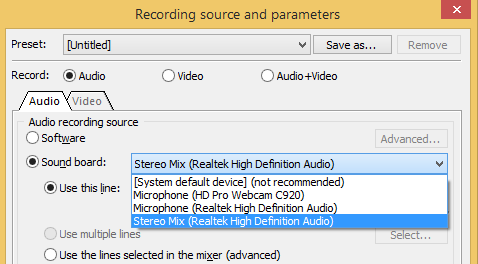
For different sound cards, the "Stereo Mix" line can be called differently,
for example, "What U hear", "Wave", "Loopback".
If there is no such line in the list, see the following
Total Recorder FAQ section.
If:
a) your sound card doesn't have the "Stereo Mix" (or similar)
line;
b) sound recorded from this line is not the
sound that you need to be recorded;
c) your aim is to record Internet-telephony conversations,
then the Way 1
is not a solution for you.
The Way 2 is to use the kernel-mode virtual
device driver.
For this you need to re-install the Total Recorder on the
top of the existent install. During the installation, in
the dialog with the parameters of the installation, click
Advanced button:
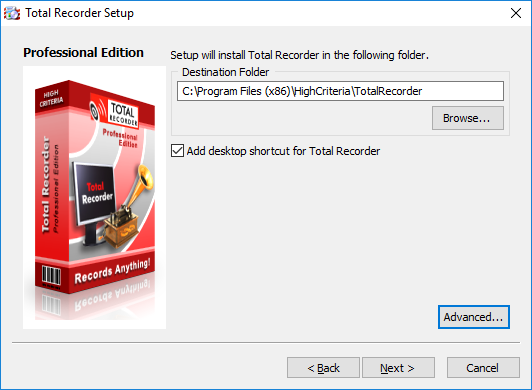
In the opened dialog select only the Kernel-mode virtual device driver:
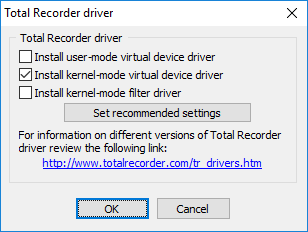
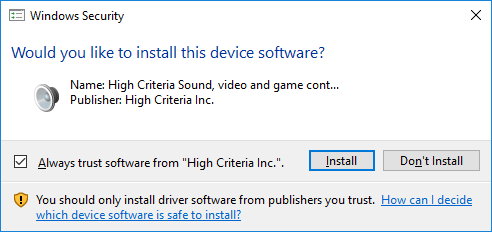
As the installation continues, Windows can issue a request to confirm the driver installation. Answer it as follows:
Reboot after installation completes.
After the installation is complete, run Total Recorder. Open the Options - Settings - Driver dialog. Click Set both as defaults.

Some programs have their own sound devices settings. Such
programs need to be configured to use the Total Recorder
virtual device drivers. For example, Skype needs to be configured
like this:
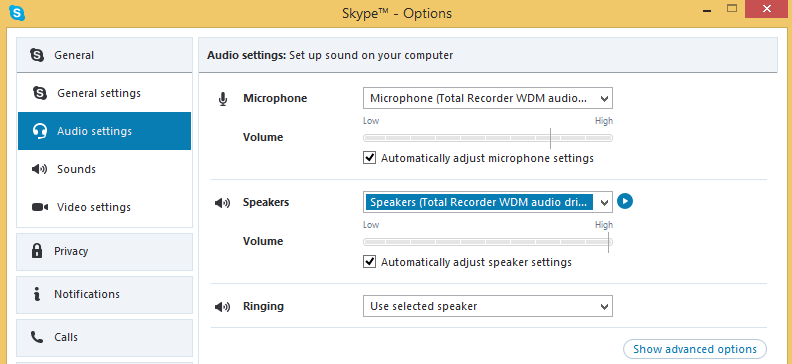
If the recommendation doesn't help you, please contact
our technical support at support@highcriteria.com.
|
|
|
|
I
cannot see certain sound devices (e.g. Stereo Mix, Line In)
in the list of sound devices under WinVista and later, although
I know my soundcard does have them. Why? |
|
Although your sound card has a line needed, it may be disabled.
For a line to become enabled under WinVista and later, take
the following steps:
-
a. In the Control
Panel, go to the Sound item.
b. Click on the Recording tab.
c. Right click on the background of the tab and select
"Show Disabled Devices".
d. Find the item corresponding to the line to be enabled,
right click on it, and select Enable.
|
|
|
|
Accelerated mode in version 6.0 and later with using Total
Recorder user-mode audio driver. |
|
In Total Recorder Version 6.0, the accelerated
recording mode algorithm was changed. More controls were implemented
to avoid the player hanging and to prevent sound distortion.
In some cases, the accelerated rate will be decreased to 1
even when recording in accelerated mode could run properly.
To be able to record in accelerated mode
in Version 6.0 and later (provided you use the Total
Recorder user-mode audio driver), you need to
take the following steps:
1. Create a file with Notepad (menu Start->
Programs-> Accessories) and copy the following text into
this file:
REGEDIT4

[HKEY_CURRENT_USER\Software\HighCriteria\TotalRecorder]
"NoChkAcc"=dword:00000001
2. Save this file with the extension .reg
(e.g. TR.reg).
3. Double-click this REG file and answer "Yes" to
update the Registry.
4. Restart Windows.
Note: With such changes
in the Registry, sound reproduced by some playback programs
(e.g. WMP) could be recorded incorrectly in accelerated mode.
You should therefore follow the steps above only if a particular
application and given type of translation are approved for
correct recording. If you experience problems with an application
then the output of this application should be recorded only
at a speed of 1.
To reverse these changes to the Registry,
you need to change value 1 to value 0 either manually in the
Registry, or correct the REG file that you made (it should
contain 00000000 instead of 00000001) and double-click this
REG file once again.
|
|
|
|
Accelerated
mode in version 7.0 and later with using Total Recorder kernel-mode
audio driver. |
|
The Total
Recorder kernel-mode virtual device audio driver
cannot determine whether an application can cope with reproducing
sound at an above normal speed and transfer the correct data
to the driver. Therefore, the only way to define an optimal
speed of acceleration, which would give a satisfactory result
for a given computer, soundcard, player, and recording format,
is by experimentation. This speed is expected to be lower
than the speed if you were using Total Recorder's user-mode
audio driver.
When using the Total
Recorder kernel-mode filter driver it is not
possible to record in accelerated mode at all.
See also Total Recorder Help, Using Total
Recorder -> Recording -> Accelerated Recording.
|
|
|
|
After
installing TR 8.0 in WinXP SP1 I lost all my sound devices. |
|
Total
Recorder kernel-mode filter driver is not compatible with
Windows XP SP1. It can be used only with Windows XP SP2 and
higher. Two other Total Recorder drivers (user-mode virtual
device driver and kernel-mode virtual device driver) can be
installed and used with Windows XP SP1.
|
|
|
|
When I try to launch the
Total Recorder Help, I get a help window that contains a list
of help topics on the left side, but a message on the right
side saying "Navigation to the webpage was canceled"
or "Action canceled". |
|
The situation is most likely related to
some security settings in the system, which prevent chm files
from correct representation.
To correct the problem you should do the
following:
- open the folder where Total Recorder is installed (by
default it is C:/Program Files/High Criteria/Total Recorder)
using any file management
program;
- find file TotalRecorder.chm, right-click on it;
- select Properties and press "Unblock" button
to unblock the file.
Note, instead of the Total Recorder Help
you can use the documentation in pdf format: http://www.totalrecorder.com/download/TotalRecorder.pdf
|
|
|
|
Total
Recorder and Direct Sound |
|
Total Recorder user-mode
virtual device driver is not compatible with Direct Sound.
When Total Recorder user-mode virtual device driver is set
as a preferred device and your playback program uses Direct
Sound, the program may start hang or produce garbled sound.
To eliminate the problem, use another type
of Total Recorder driver (menu Options -> Settings,
Driver dialog).
Alternatively, you can set up the playback
program so that it does not use Direct Sound. Many modern
programs can be set up to optionally use Direct Sound. Refer
to the program's documentation for more information. The Troubleshooting
sections also explain how to deal with specific programs.
|
|
|
|
Total
Recorder and Games |
|
Some users have reported incompatibilities
between the Total Recorder user-mode
virtual device driver and some high-end games that rely
heavily on Direct Sound. To eliminate this problem, use solutions
described in the Total Recorder and Direct Sound
section of this FAQ.
|
|
|
|
Adobe
software (Adobe Premiere, Adobe Encore, ...) |
|
When the Total Recorder
user-mode virtual device driver is active then the Adobe
software will not start. To resolve the problem, use solutions
described in the Total Recorder and Direct Sound section of
this FAQ.
See also the Adobe Support Knowledgebase:
Troubleshoot
installation and startup issues, find Disable
emulated audio drivers or universal audio capture and playback
utilities.
|
|
|
|
Skype |
|
If you use the Total
Recorder user-mode virtual device driver, you can run
into compatibility problems with Skype. These problems may
appear as sound distortions or repetitions, or Skype may hang
up. To resolve these problems, use the Total
Recorder kernel-mode driver (available in Total Recorder
Version 7.0 and above).
|
|
|
|
Stereo-Link
USB DAC |
|
Sometimes users can run into incompatibility
issues between Total Recorder kernel-mode driver and Stereo-Link
USB DAC: if Total Recorder is installed with its kernel-mode
audio driver, Windows does not recognize mentioned devices.
To get around the problem, install Total Recorder without
kernel-mode virtual device driver.
|
|
|
|
Other
Questions |
|
How
can I save Total Recorder's parameters in a file? How can I
save information about scheduled jobs? |
|
Beginning with Version 7.0, most of Total
Recorder's configuration settings are stored in a file in
standard XML format. You can export and import these settings.
This may be useful, for example, if you plan to reinstall
your system and wish to preserve your settings, or if you
want your current settings to be used by another user on your
computer.
To export your settings:
1. From the Options menu, select -> Export
settings...
2. Specify the name of the file to which your current settings
will be exported.
To import settings from a file:
1. From the Options menu, select-> Import
settings...
2. Specify the name of the file from which the settings will
be imported.
Note: Configuration settings
and scheduled jobs are stored separately in Total Recorder.
To export and import scheduled jobs, use the Scheduler window.
|
|
|
|
Futures |
|
Is there going to be a Macintosh version? |
|
No, we have no plans to develop a Macintosh
version.
We know that many our users run Total
Recorder successfully under Macintosh on various virtual systems,
in particular Parallels Desktop (http://www.parallels.com/products/desktop/),
Oracle VirtualBox (http://www.virtualbox.org/).
You might also try one of the products
with similar to the Total Recorder functionality. For example,
http://www.rogueamoeba.com.
However, we have no experience with their product and this is
not an endorsement.
|
|
|